Build a Home Announcement System With Two PCs
A very common request: one computer sits in a room with the speakers, and you want to make announcements to the house from a different computer. That is exactly what Multilarm's Web Remote does, and it needs no extra hardware, no accounts and no internet connection. This guide sets it up end to end — typed announcements spoken aloud, live push-to-talk, a gong before each message, and quiet hours so it never wakes the house at 4am.
Everything described here is free for personal, non-commercial use at home. There is no time limit and nothing to sign up for. A licence applies to business, institutional and congregational deployments — not to your own house.
What do you need for a two-PC home announcement system?
Two things you probably already own and nothing else: one always-on machine wired into a speaker, and any second device on the same network with a browser. The player can be a Raspberry Pi or any Windows or Linux PC; the controller can be a laptop, tablet or phone, and nothing is installed on it. The full list is below.
- One always-on machine connected to your speakers. A Raspberry Pi (3, 4, 5, 400 or Zero 2 W) is the usual choice because it is silent and draws very little power, but any Windows or Linux PC that stays on works. This is the player.
- Something to make sound. Line-out into a powered desk speaker, a soundbar's AUX input, or a small USB audio adapter. If you already own a speaker, you are done.
- Any second device on the same network — another PC, a laptop, a tablet, a phone. It only needs a browser. Nothing is installed on it.
That is genuinely the whole list. No hub device, no subscription, no cloud account.
Step 1 — Install on the player machine
Download and install Multilarm on the machine that is wired to your speakers, from the downloads page. On Windows the installer registers it as a service so it starts with the machine; on a Pi it runs as a systemd service the same way. If you are starting from a bare Pi, the flashable Pi image is faster than installing by hand.
Check it can make a noise before going any further: at the console, press T for a test alarm. If you hear nothing, jump to picking the right output below — that is almost always the cause.
Step 2 — Turn on the Web Remote
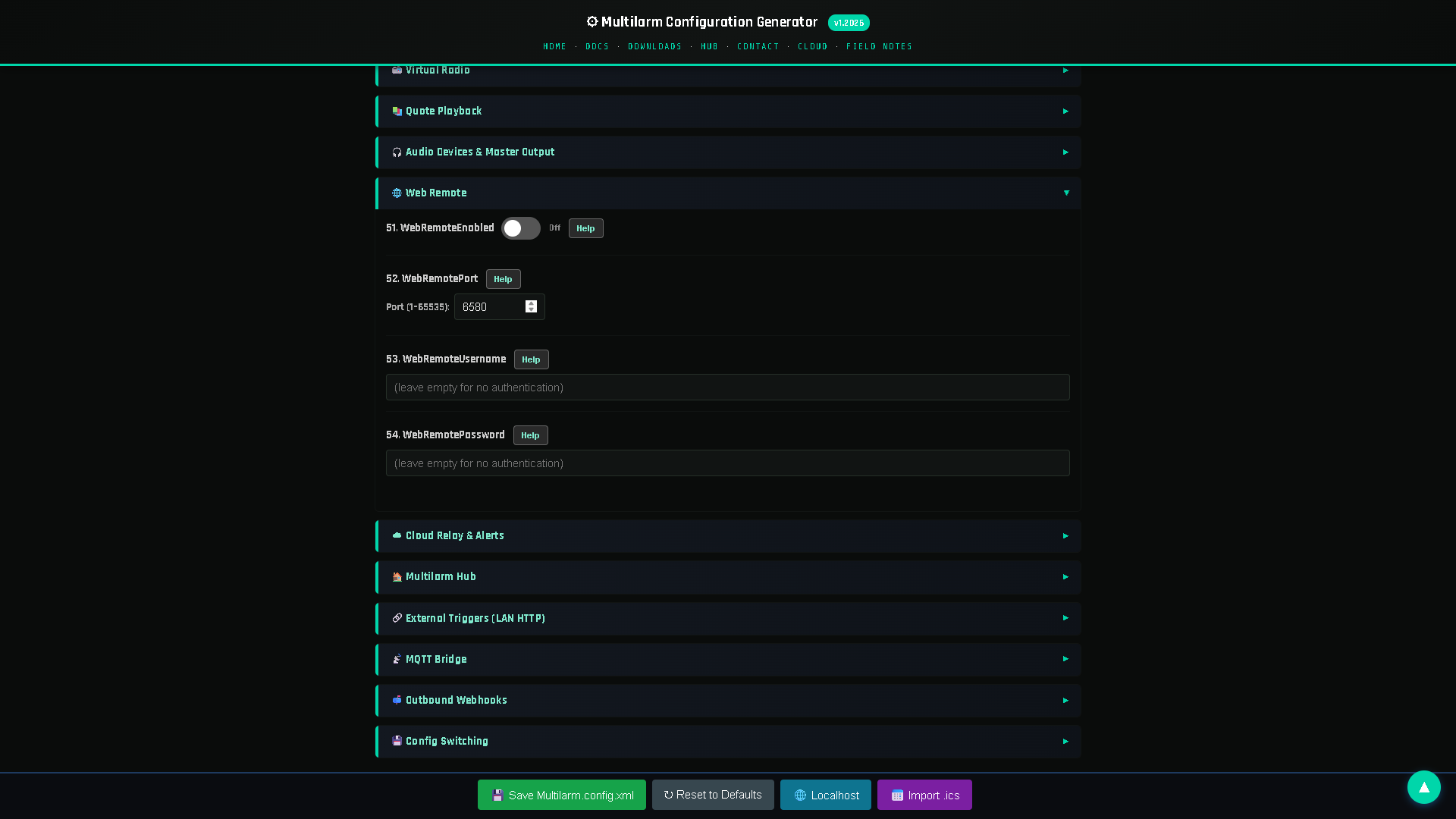
The Web Remote is a dashboard the player machine serves in a browser. Four settings control it, and you can set them in the config generator or by editing config.xml directly:
| Field | Set it to |
|---|---|
| WebRemoteEnabled | On |
| WebRemotePort | 6580 (the default is fine) |
| WebRemoteUsername | A username you choose |
| WebRemotePassword | A password you choose |
The username and password are not optional here, and the reason is worth understanding. If either is left empty, the Web Remote binds loopback only — reachable from the player machine itself and nowhere else. That is deliberate: you cannot accidentally expose a device on your network by forgetting to set a password. Setting both is what opens it to the rest of the house.
Step 3 — Open it from the other PC
On the second machine, open a browser at the player's address and port — for example http://192.168.1.42:6580 — and sign in with the credentials you set. Nothing is installed on this machine and it does not need to stay on; the dashboard is served by the player itself. From it you can do everything below.
- Type text and have it spoken aloud through the speakers, using the on-device neural voice.
- Hold push-to-talk and speak live from your microphone — effectively a house intercom.
- Upload or record audio clips and play them on demand.
- Schedule announcements, chimes and background audio to run automatically.
- Edit the configuration live — most fields take effect in about a second and a half, with no restart.
Bookmark it. In practice this is the whole system: one tab on the machine you actually sit at.
Step 4 — Add a gong before announcements
A tone before a spoken message makes an enormous difference — it gets attention before the words start, so nobody misses the first three of them. Multilarm has this built in.
One tone
Set TTSChimePath to a short gong or chime file:
{app}\Chimes\gong.mp3It now plays automatically immediately before every announcement that is spoken by the built-in voice — whether you typed it live from the other PC or it fired from a schedule.
Several tones
Point the same field at a folder plus a mode instead of a single file:
{app}\Chimes>all>all plays every file in that folder in filename order — name them 1-.., 2-.., 3-.. to fix the order — and then the announcement is spoken. SequenceGapMs sets the silence between the tones, and SequenceMaxSeconds is a safety cap so a folder you later fill with music cannot hold the speakers for an hour. A plain single-file path behaves exactly as it always did.
A gong before a recorded clip
For scheduled audio, the gong does not need to be a separate step at all. Chain sources inside one path entry with a space-padded plus sign:
{app}\Chimes\gong.mp3 + {app}\Announcements\dinner.mp3That is one uninterrupted event: gong, then the clip, then any spoken text. The spaces around the + are required, because + is a legal character in a filename — a folder genuinely called Rock+Roll keeps working, and \+ writes a literal spaced plus. Other modes are available on any folder: >shuffle (every file, random order), >seq (one per firing, stepping through and remembering its place), and *N to cap how many files a source contributes. There is a chapter in the video user guide covering all of this if you would rather watch it.
The one exception: live push-to-talk. When you are holding the mic, your voice goes straight out — there is no chime in front of it, by design, because the whole point of PTT is immediacy. If you want a tone first, play the gong clip from the dashboard a moment before you key the mic.
Step 5 — Quiet hours, and not waking the house
Quiet hours are the difference between a home installation and every other kind: a hall can be loud at any hour, and a house cannot. The mechanism is a volume profile that lowers the output during time windows you set, so the same announcement plays at a fraction of the level overnight without you editing the schedule.
The mechanism is VolumeProfileRules, which overrides your master Volume during time windows. Rules are checked every second, first match wins, and when nothing matches the master volume applies:
22:00-07:00,volume=0.3Quiet nights, plus a weekday lunchtime dip:
22:00-07:00,volume=0.3;12:00-14:00,volume=0.6,w=mo-frThe w= and m= filters are weekday and month, and the same rule syntax is reused elsewhere in the system, so it is worth learning once.
Pair it with AlarmFadeInMs, which ramps audio up instead of starting at full level. A couple of thousand milliseconds turns a jolt into a wake-up. The combination — a low-volume overnight window and a fade-in — is the standard recommendation for anything that fires early in the morning.
How do you pick the right audio output?
Choosing the output device trips people up more often than any hardware problem does. PlaybackDevice is an index, not a name, and the index that works is not always the obvious one. Press O at the console for a dump of every device the audio engine can see, then set the index from that list.
Two things worth knowing:
- PlaybackDevice and RecordDevice need a restart to take effect. Most other fields hot-reload in about a second and a half, so do not be surprised when these two behave differently.
- Set your operating system mixer and your amplifier to a comfortable maximum once, then do all day-to-day adjustment with Volume and VolumeProfileRules. Fighting the OS mixer against the app volume is the second most common home complaint.
If you want the same announcement in more than one room, MirrorDevices plays through additional outputs alongside the main one (pipe-delimited indices, e.g. 2|4). The engine decodes once and clocks every output together, so it does not sound like an echo the way two independent players in two rooms would.
What should you know before you start?
Four things are worth knowing up front, because each of them surprises somebody: the automated voice is English only, mirroring is not the same as zoning, this is not a home-automation platform, and personal use is genuinely free rather than a limited trial. The detail is below.
- The automated voice is English only — en-US and en-GB. There is no neural voice for other languages. You can play your own recordings in any language you like; the restriction is only on typed text being spoken aloud.
- Mirroring is not zoning. Mirroring sends identical audio everywhere at once, which is what a house almost always wants. Genuinely different schedules in different rooms means separate instances with separate configs — worth the complexity in a building, rarely in a home.
- It is not a home-automation platform and is not trying to become one. It does not control lights or heating. It does scheduled audio, spoken text, live paging and alerting, on hardware you own, without a cloud dependency. It does have an MQTT bridge and outbound webhooks, so your automation system can decide and let Multilarm speak.
- Nothing phones home. The scheduler, the voice and the audio all run locally. The optional cloud relay stays off until you put a token in the config.
Going further
Two additions people usually make once the basics work:
- Spoken reminders with live values. Announcement text supports placeholders that are filled in as it speaks —
#ALARM+1#is the next scheduled time,#TIMETOALARM+1#the time remaining until it, and#NOW#the current time. A reminder written once stays correct all year. - Control from outside the house. The Web Remote is deliberately LAN-only. If you want to announce from work or from a phone on mobile data, that is what Cloud Relay adds, along with email alerts if the device goes offline or an announcement is missed. It is optional and the home setup above never needs it.
Related guides
- What Is Multilarm? A Complete Overview
- PA & Announcement Systems: A Complete Guide
- Athan Clocks vs Apps vs Full Systems
Setting one up and stuck on something this does not cover? Ask in the community forum — the home-setup threads there go into audio hardware and quiet hours in more depth.
See it working
Try the free Multilarm live demo — no installation required.
FAQ
Can I announce from one PC and have it play on another?
Yes. Multilarm is installed on the machine connected to the speakers, and that machine runs a Web Remote dashboard in your browser. Any other computer, tablet or phone on the same network opens that dashboard and drives the announcements — typed text-to-speech, live push-to-talk, uploaded clips or schedules. Only the player machine needs the software installed.
Is Multilarm free to use at home?
Yes. Personal, non-commercial use in your own home is free, with no account required and no time limit. A licence applies to business, institutional and congregational deployments.
Can I play a gong or chime before each announcement?
Yes. Point TTSChimePath at a gong file and it plays automatically before every spoken announcement. Point it at a folder with the >all mode and it plays every tone in that folder in filename order, with SequenceGapMs of silence between them. For a scheduled clip, chain the gong into the path itself with a space-padded plus sign.
Do the two computers need internet access?
No. Announcements, speech synthesis and schedules all run locally. Both machines only need to be on the same home network. Internet is needed only if you add the optional Cloud Relay to control the system from outside the house.
What languages can the automated voice speak?
The built-in text-to-speech voice is English only (en-US and en-GB). You can play your own recordings in any language, but typed text is spoken in English.
Can I stop it waking the house at night?
Yes. VolumeProfileRules lowers the volume during time windows you set — for example 22:00-07:00,volume=0.3 — and AlarmFadeInMs ramps audio up instead of starting at full level. The two together are the standard quiet-hours recommendation.
Multilarm is announcement, prayer-time and alerting software that runs on a Raspberry Pi or PC and drives the speakers you already own. Free for personal use. Try the free live demo »